Connect Microsoft AI Shell to Azure OpenAI Service
Learn how to deploy Azure OpenAI Service with Bicep and configure Microsoft AI Shell to use enterprise-grade GPT models securely from your terminal. Step-by-step guide included.

If you’ve been exploring the world of AI tools, you may have already discovered how powerful language models can be when woven into your everyday workflows. But what if you could take that power right into your command line? That’s where Microsoft AI Shell comes in.
In my previous post, “Install and Use Microsoft AI Shell”, I walked through how to get AI Shell up and running. Now, we’re taking the next step: connecting AI Shell to Azure OpenAI Service so you can use secure, enterprise-grade models directly inside your terminal.
In this blog, we’ll walk through the entire journey of deploying Azure OpenAI Service using Bicep, retrieving the required endpoints and keys, and configuring Microsoft AI Shell to use your Azure-hosted GPT model securely from the command line.
Deploying Azure OpenAI Service via Bicep
In order to use the OpenAI-GPT agent within the AI Shell you will either need a public OpenAI API key or an Azure OpenAI deployment.
There are two things needed to begin a chat experience with Azure OpenAI Service, an Azure OpenAI Service account and an Azure OpenAI Deployment.
- The Azure OpenAI Service account - the Azure resource that hosts models.
- The Azure OpenAI Deployment - a specific model instance you can invoke via API.
Rather than clicking through the Azure Portal we can use Azure Bicep to deploy everything we need in a repeatable, auditable way.
Prerequisites
Before you begin, ensure you have the following:
- An active Azure subscription
- Azure CLI or Azure PowerShell installed
- Azure Bicep installed
- Proper permissions to create resources in your Azure subscription
Bicep Template
Our Bicep template will:
- Create an Azure OpenAI (AI Services) account
- Assign a system-managed identity
- Deploy a GPT-4o model
You’ll need to update the placeholder parameter values before deployment.
@description('This is the name of your AI Service Account')
param aiserviceaccountname string = 'Insert own account name'

@description('Custom domain name for the endpoint')
param customDomainName string = 'Insert own unique domain name'

@description('Name of the deployment ')
param modeldeploymentname string = 'Insert own deployment name'

@description('The model being deployed')
param model string = 'gpt-4o'

@description('Version of the model being deployed')
param modelversion string = '2024-11-20'

@description('Capacity for specific model used')
param capacity int = 80

@description('Location for all resources.')
param location string = resourceGroup().location

@allowed([
  'S0'
])
param sku string = 'S0'

resource openAIService 'Microsoft.CognitiveServices/accounts@2025-10-01-preview' = {
  name: aiserviceaccountname
  location: location
  identity: {
    type: 'SystemAssigned'
  }
  sku: {
    name: sku
  }
  kind: 'AIServices'
  properties: {
    customSubDomainName: customDomainName
  }
}

resource azopenaideployment 'Microsoft.CognitiveServices/accounts/deployments@2025-10-01-preview' = {
    parent: openAIService
    name: modeldeploymentname
    properties: {
        model: {
            format: 'OpenAI'
            name: model
            version: modelversion
        }
    }
    sku: {
      name: 'Standard'
      capacity: capacity
    }
}

output openAIServiceEndpoint string = openAIService.properties.endpoint
A few things to call out:
- The customSubDomaName must be globally unique and this isn’t a domain name like sarah.com, it’s a name for your service.
- Capacity requirements vary by model, check Azure OpenAI quotas if deployment fails.
Deploying the Bicep Template
From the directory containing your Bicep file, deploy it using the following Azure CLI commands.
Deploy the resource group first:
az group create --name <your-rg-name> --location <your-region>
Now deploy the template file (change the parameters to suit your deployment):
az deployment group create --resource-group "rg-bicepdeploy2" --template-file main.bicep --parameters aiserviceaccountname='myaiacct' customDomainName='techielassaideployment' modeldeploymentname='mydeployment'
Once the deployment has completed run these commands, and they will pull out the information you need to configure AI Shell to use this deployment.
# Retrieve the Azure OpenAI service endpoint and API key.
az cognitiveservices account show --name <account name> --resource-group <resource group name> --query "properties.endpoint" -o tsv
# Retrieve the Azure OpenAI endpoint and API key.
az cognitiveservices account keys list --name <account name> --resource-group <resource group name> --query "key1" -o tsv
Save the outputs as you will need them later on.
Configure AI Shell
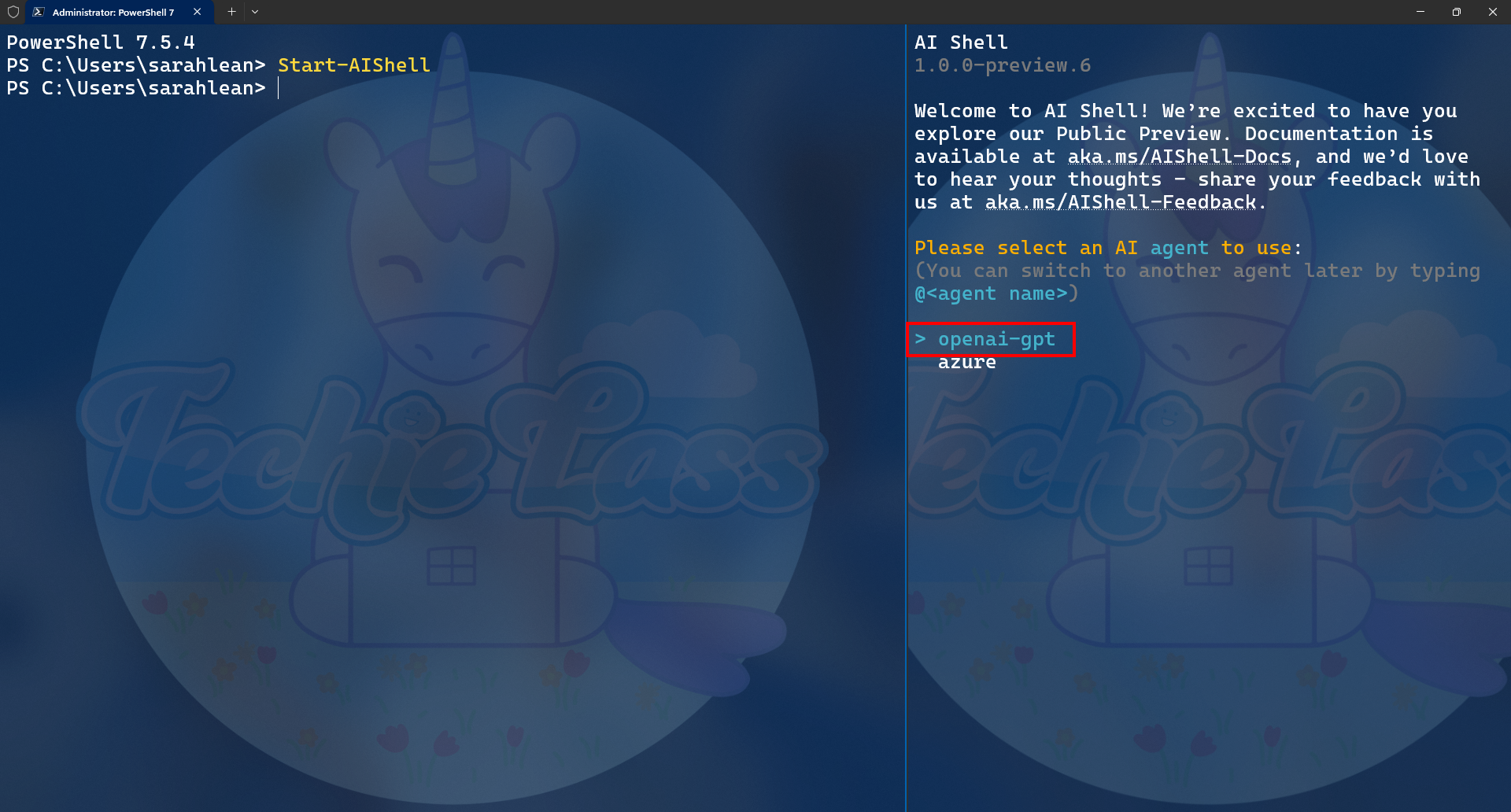
Open up your terminal and start the AI Shell.
Select openai-gpt
Then type in:
/agent config
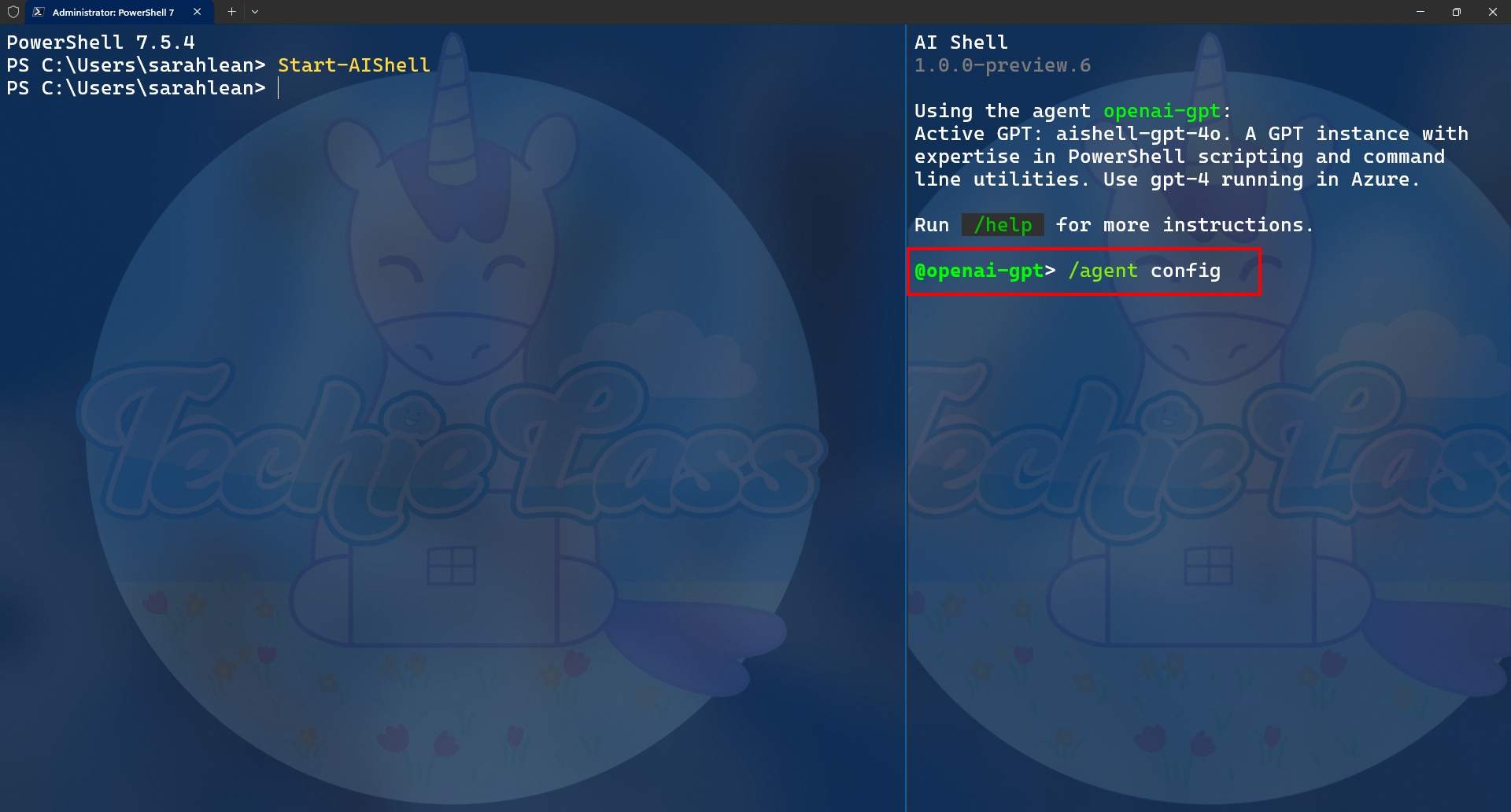
A json file should open.
Configure the json with this information and the endpoint and key values you saved earlier:
{
  // Declare GPT instances.
  "GPTs": [
      {
        "Name": "ps-az-gpt4o",
        "Description": "<insert description here>",
        "Endpoint": "<insert endpoint here>",
        "Deployment": "<insert deployment name here>",
        "ModelName": "gpt-4o",
        "Key": "<insert key here>",
        "SystemPrompt": "1. You are a helpful and friendly assistant with expertise in PowerShell scripting and command line.\n2. Assume user is using the operating system `osx` unless otherwise specified.\n3. Use the `code block` syntax in markdown to encapsulate any part in responses that is code, YAML, JSON or XML, but not table.\n4. When encapsulating command line code, use '```powershell' if it's PowerShell command; use '```sh' if it's non-PowerShell CLI command.\n5. When generating CLI commands, never ever break a command into multiple lines. Instead, always list all parameters and arguments of the command on the same line.\n6. Please keep the response concise but to the point. Do not overexplain."
      }
  ],
  // Specify the default GPT instance to use for user query.
  // For example: "ps-az-gpt4"
  "Active": "ps-az-gpt4o"
}
Save the file, and then return to your AI Shell. Type the command:
/refresh
You can now start to use your AI Shell with the AI model you just deployed.
Conclusion
By deploying Azure OpenAI Service with Bicep and integrating it with Microsoft AI Shell, you’ve created a secure, repeatable way to bring enterprise-grade AI directly into your command-line workflows. This approach eliminates the need for manual portal configuration, ensures your infrastructure is auditable, and aligns with best practices for infrastructure-as-code (IaC).
With AI Shell now connected to your Azure-hosted model, you can start using natural language to assist with scripting, troubleshooting, and day-to-day operational tasks, all without leaving the terminal.
This setup is a solid foundation for experimenting with AI-assisted operations in a controlled, enterprise-ready way, and a great next step if you’re looking to embed AI more deeply into your existing tooling and workflows.