LinkedIn Smart Links: How to Share Resources, Track Engagement, and Improve Outreach
Learn how LinkedIn Smart Links can simplify sharing multiple resources, track engagement, and improve your outreach using Sales Navigator.

Have you ever needed to send an email to a large group of customers, whether they’re long-standing clients or new contacts you’re hoping to engage, only to find your message held up by email filters because it contains attachments? Or perhaps you’ve sent useful content but were left wondering whether anyone actually opened it or read what you shared.
This is exactly where LinkedIn Smart Links can make a difference. Instead of attaching files, you can bundle multiple resources, videos, PowerPoint decks, PDFs, webpages, into a single, trackable link and make that your call to action.
In this blog post, we’ll explore what LinkedIn Smart Links are, how they work, and how you can use them to improve customer engagement and make your outreach efforts more effective.
What are LinkedIn Smart Links?
LinkedIn Smart Links are a feature within LinkedIn Sales Navigator that allow you to package multiple pieces of content, such as PDFs, slide decks, videos, and webpages, behind a single, trackable link. Instead of attaching files to emails or sending several separate URLs, you can bundle everything neatly into one place and share it in just a few clicks.
LinkedIn Smart Links act as a lightweight content hub. It can host material you want to share, it can load quickly, and avoid many of the issues that come with traditional attachments on emails like email filters blocking them or customers hesitating to open unknown files.
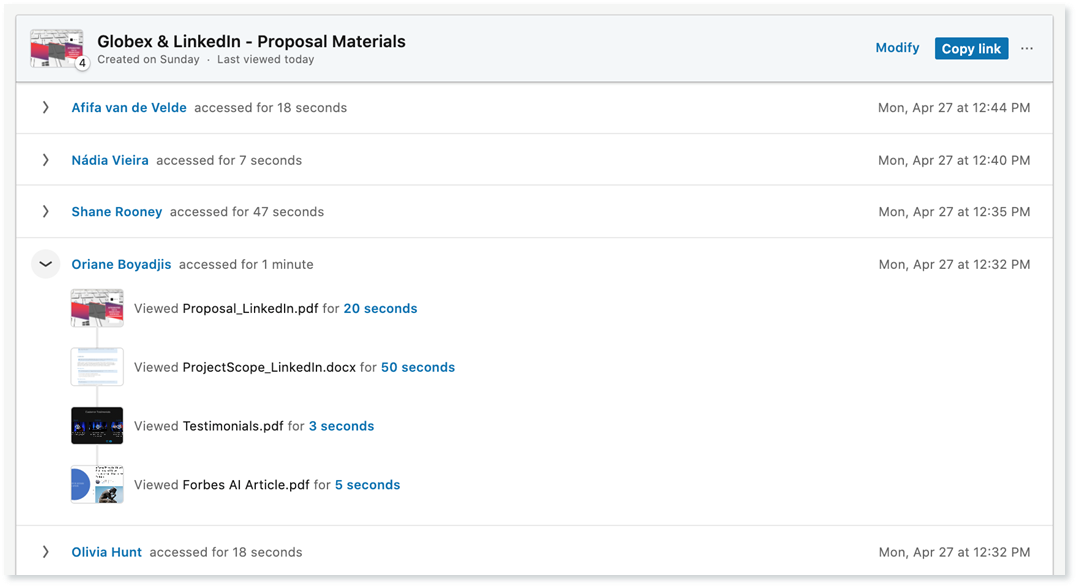
Where LinkedIn Smart Links really stand out is in the insights they provide. Once someone opens your link, you can see which assets they viewed, how long they spent on each one and whether they returned later. This gives you visibility into engagement levels that standard emails and attachments simply can’t.
LinkedIn Smart Links can also be updated over time. You can remove or replace a slide deck that’s out of date with a newer version without creating a new Smart Link, the link remains valid, but the content is updated. This makes it easy to keep your information current and relevant.
Pricing for LinkedIn Smart Links
LinkedIn Smart Links is part of LinkedIn Sales Navigator. LinkedIn Sales Navigator is a premium tool within LinkedIn, it is designed for sales and business professionals. It can help you find, connect and engage with the right leads more effectively. It can integrate with your CRM tools and Smart Links is a feature depending on what plan you purchase.
There are three pricing plans for LinkedIn Sales Navigator, Core, Advanced or Advanced Plus. If you would like access to Smart Links you need to have Advanced or Advanced Plus.
How to create and use LinkedIn Smart Links
Let’s walk through creating your first LinkedIn Smart Link.
Head over to www.linkedin.com. If you have access, you should see a Sales Navigator icon in the top right-hand corner, click on this.

Once inside LinkedIn Sales Navigator, the top menu should include Smart Links. Click on it.

When the page loads, you’ll see a New Smart Link button, click this.

You’ll be asked to give your Smart Link a title, which will be visible to recipients. Below that, there’s an Add button. Click it to choose whether you want to add a file or a website link.
You can upload video files (under 200MB), PowerPoint presentations, images, PDFs, essentially anything you want to share. If you’re adding a website, simply enter the relevant URL.
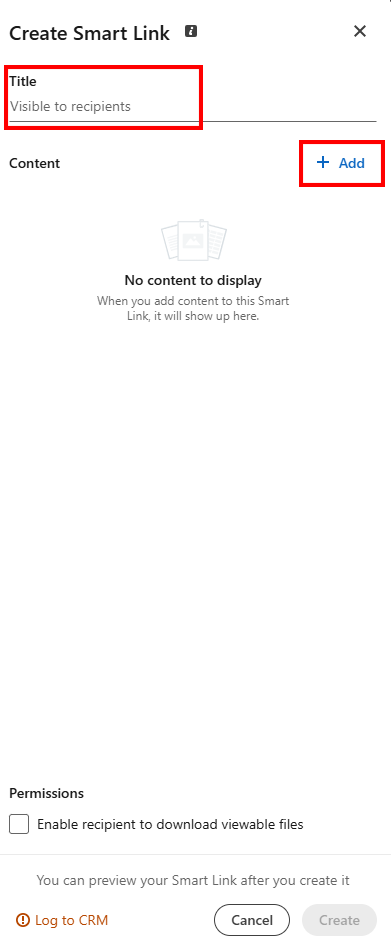
There’s also a checkbox that allows recipients to download the material you’ve shared, if you enable it.
Once you’ve added all the content you want, and remember, you can always add, remove, or update material even after the link has been shared, click Create.
Your new LinkedIn Smart Link will then appear on your dashboard. From here, you can copy the link to share with your audience, view analytics, modify the content, preview it, or even delete it.
Best Practices for using LinkedIn Smart Links effectively
To get the most value from LinkedIn Smart Links, it helps to approach them with a bit of strategy. Here are some simple but effective best practices that can elevate your outreach and improve engagement.
- Keep your content focussed: avoid cramming too many assets into a single Smart Link, keep the material on theme and relevant to the readers.
- Use clear, compelling titles: When you create a Smart Link, the title is often the first thing your reader will see. Make it description and action-oriented so it stands out.
- Track the analytics and follow up: One of the biggest advantages of Smart Links is the insight they provide. Check who has viewed your content, what they have clicked on, how much of the videos they have viewed. Use these signals to tailor your next conversation or send more relevant material.
- Refresh the content regularly: If you reuse Smart Links over time keep the material up to date. Outdated decks or old product information can undermine trust.
Final Thoughts
LinkedIn Smart Links offer a simple yet powerful way to share multiple resources with your audience while gaining insights into how they engage with your content. Used strategically, Smart Links can improve engagement, streamline your outreach, and help you follow up more effectively.
While it is a paid feature, exploring LinkedIn Sales Navigator and what it can do for you and your business is well worth considering.